The Scorpion Solitaire app
In brief
Available on the App Store (iPhone and iPad) and on Google Play (Android). The app is played in landscape orientation, with Classic or Relaxed rules, a code for each game, and undo for the last 100 actions.
Where to download it
| Platform | Listing |
|---|---|
| iPhone and iPad (App Store) | View on App Store (new tab) |
| Android (Google Play) | View on Google Play (new tab) |
Links checked on October 30, 2026. The app is not available as a desktop version.
What the app does
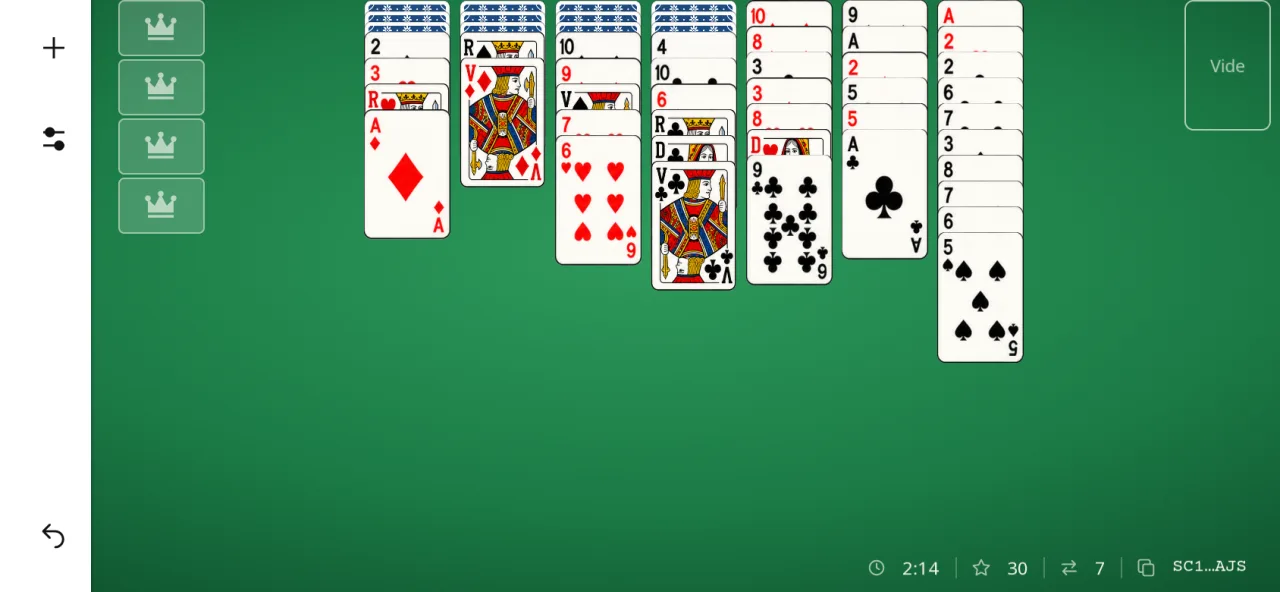
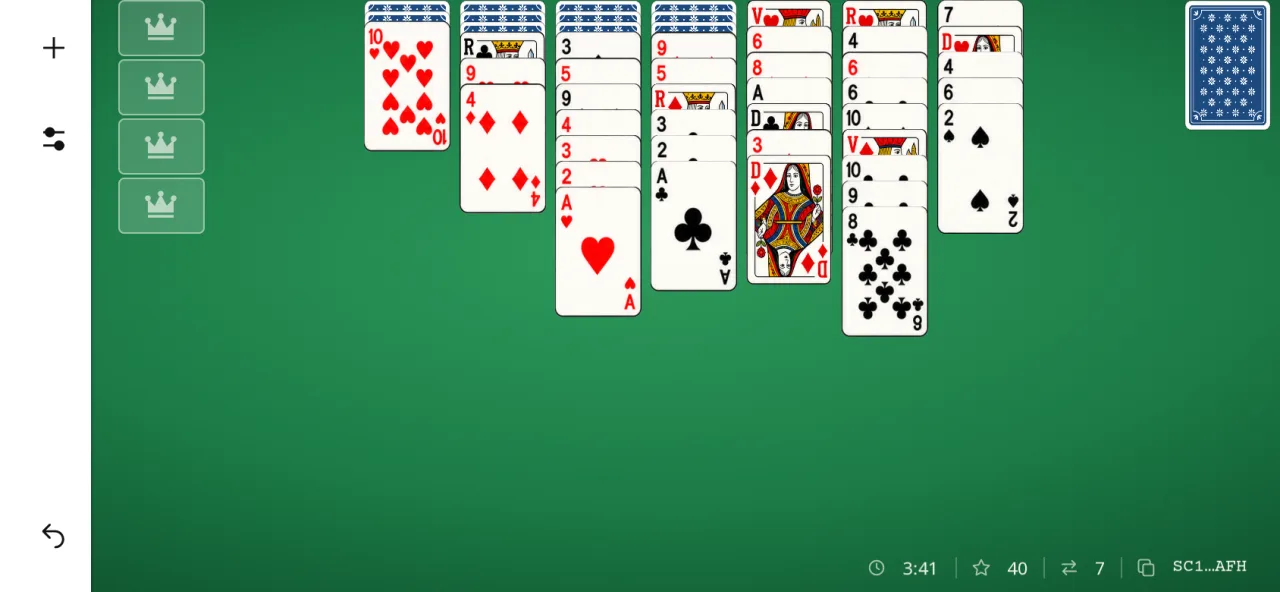
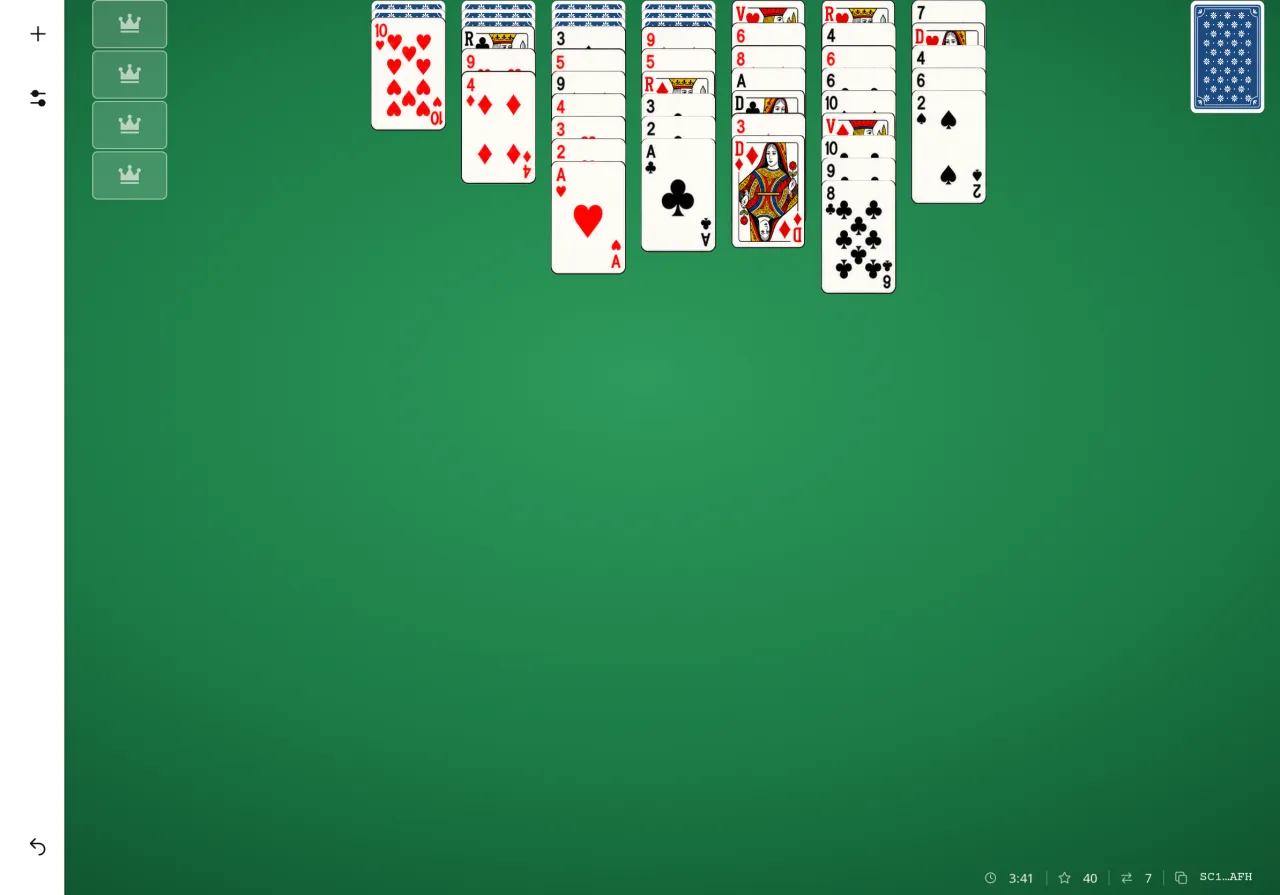
- Scorpion: 52 cards, 7 columns of 7, 3 cards in reserve, and complete sequences removed automatically.
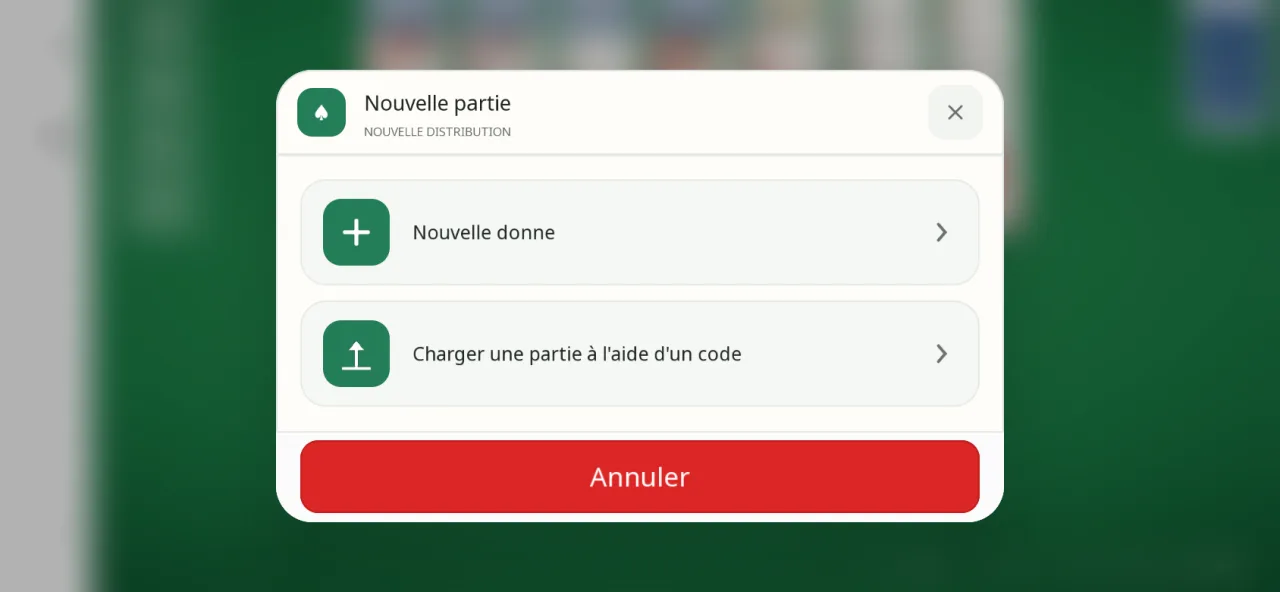
- Two rule sets: Classic (same suit, the default) or Relaxed (any suit), selected in the New Game window.
- Game code: each deal has a code (for example, SC1-C-AAAAAAB) that you can copy, paste, or enter to replay the same deal or share it with someone.
- Undo the last 100 actions.
- Play aids, enabled in settings: double-tap to send a card to the best available place, a rule reminder when a move is rejected, highlighting of the target position while dragging, and pinch to zoom.
- Statistics and a ranking of the top 10 results.
- Appearance: 4 table backgrounds (sage green, slate, plum, sand), 5 card-back colors, a light or dark theme; 36 languages.
Phone and tablet
The images below are screenshots of the current app, at the size of each screen.
In pictures